Zoom that follows your clicks
The camera moves to where you act, holds, then eases back. You choose the zoom level and what triggers it.
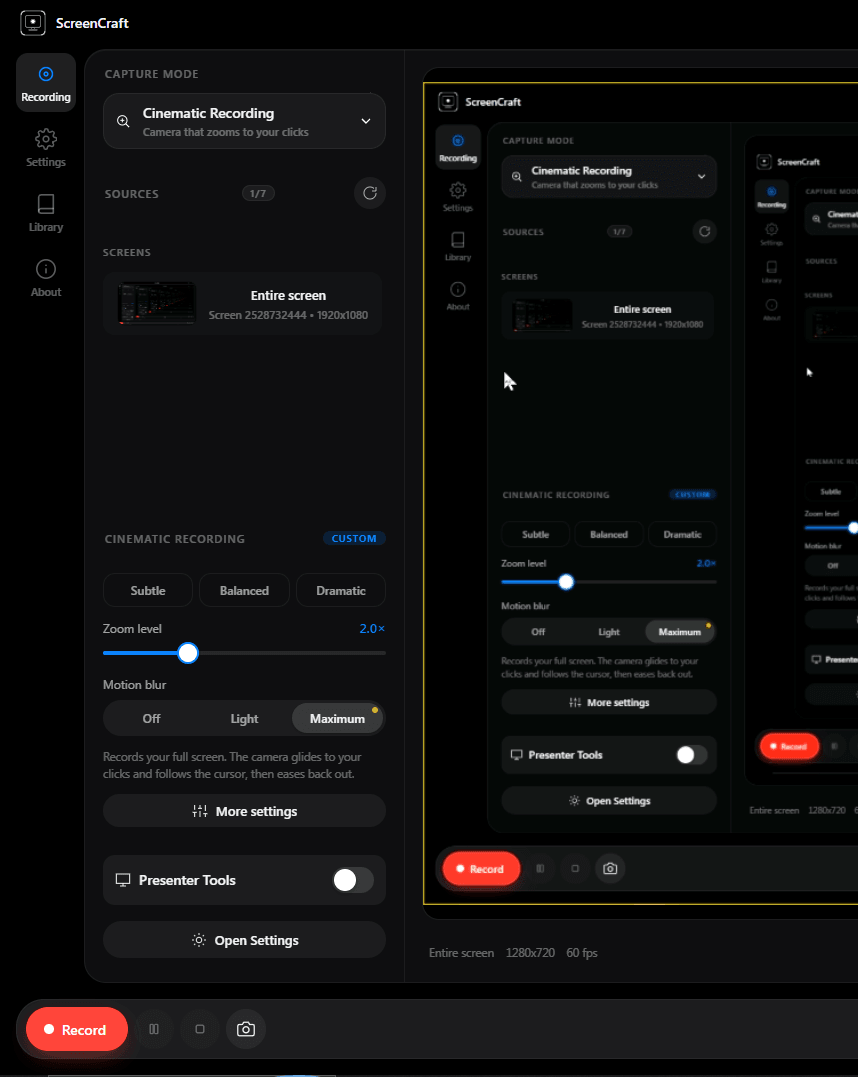
Cinematic Recording
Turn it on and ScreenCraft glides in to every click, holds long enough to read, and eases back out. No editing, no keyframes.
Cinematic Recording
Scroll to move from a normal recording to one with Cinematic Recording on.
The camera glides to where you act, at the zoom level you chose.
Hold time and follow style are yours to set, so viewers can take it in.
Then it settles into the wide shot and waits for the next click.
Left of the handle: Cinematic off. Right: Cinematic on.
How it works
Open the Cinematic Recording panel in the sidebar and switch it on before you record.
Subtle, Balanced or Dramatic, then set the zoom level and what triggers a zoom.
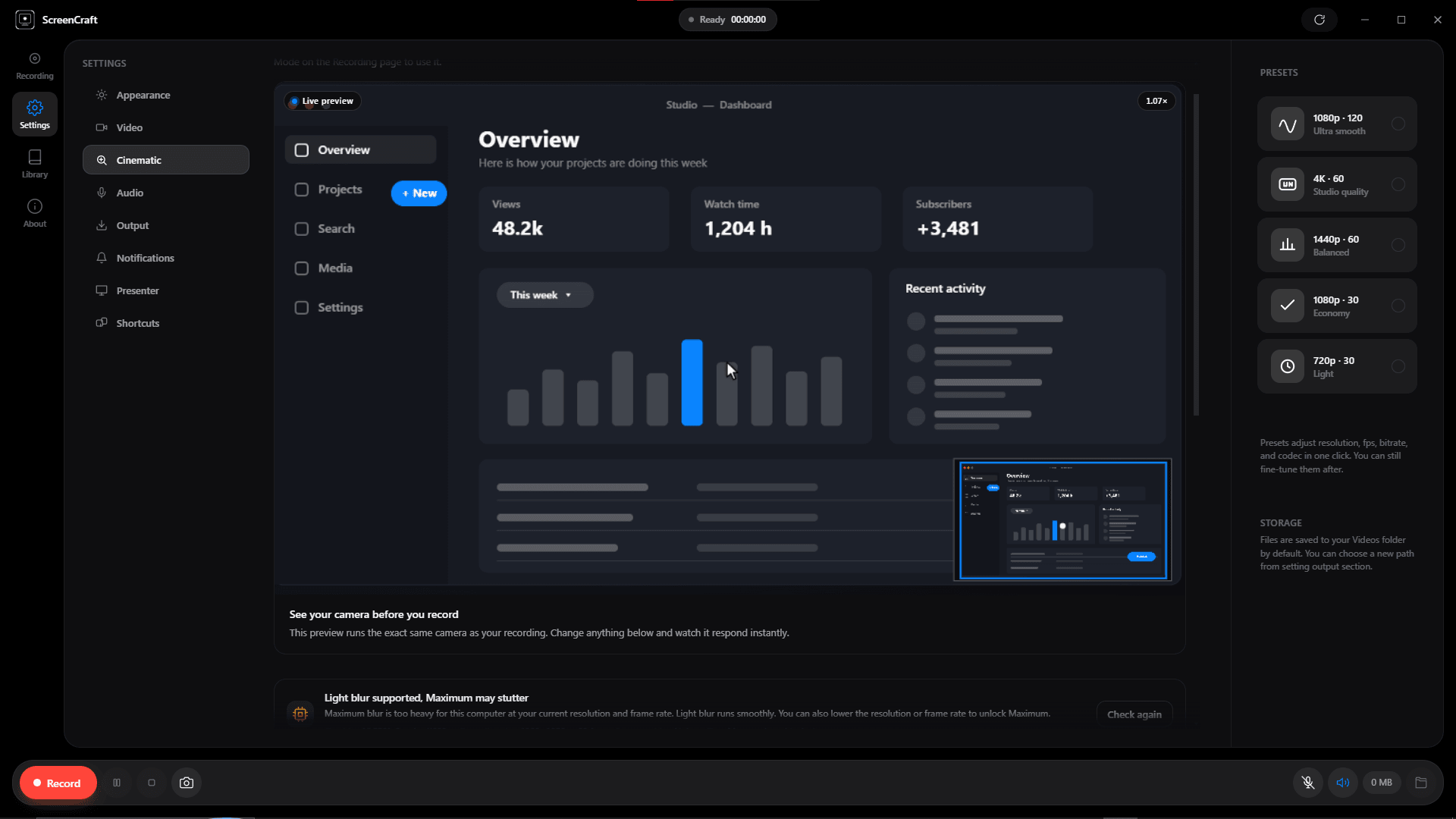
ScreenCraft tests your PC at your recording size and recommends Off, Light or Maximum motion blur.
The camera moves while you work. You get a finished video, with nothing to edit afterwards.
The camera moves to where you act, holds, then eases back. You choose the zoom level and what triggers it.
Subtle, Balanced or Dramatic. Each sets how the camera feels, and you can tune the movement under Advanced settings.
Blur sells the movement. Pick the level you want, or let the device check choose a safe one.
A short test at your recording size and frame rate decides whether Maximum, Light or no blur will stay smooth.
If your PC struggles mid-recording, blur is lowered step by step and you are told. Recording never stops because of it.
See the camera behaviour in Settings before you record, so there are no surprises in the final video.

Questions
It is a recording mode where a virtual camera moves across your screen while you record. In ScreenCraft the camera zooms toward your clicks, holds long enough to read, then eases back out, all in real time with no editing.
Yes. ScreenCraft is free to download and use, with Cinematic Recording built in. It has no watermark and needs no account.
ScreenCraft records from 720p up to 4K. 4K needs a display and a PC that support it, and the device check tells you which motion blur level your PC can run smoothly at your chosen size and frame rate.
Motion blur is optional: Off, Light or Maximum. The device check recommends a safe level, and Protect smoothness lowers blur step by step if your PC struggles during a recording.
Yes. Pick a Subtle, Balanced or Dramatic style, then set the zoom level, what triggers a zoom, hold time, follow style and look-ahead under Advanced settings.
MP4 is the default. You can also export WebM, GIF or MP3 from the Library.
Free screen recorder for Windows 10 and 11. No watermark, no account.